 Ovation Developer Docs
AWS MFA Setup
By Ben C. Forsberg
Our policy is that all access to production secrets and infrastructure must be gated by MFA. This document provides step-by-step instructions for configuring CLI access to AWS using MFA in a way that is compatible with the Terraform tool.
When the policy is attached to your credential, any attempt to use your credentials to do anything except configure your MFA device will yield an error like this one:
$ aws --profile mfatester lambda list-functions

An error occurred (AccessDeniedException) when calling the ListFunctions
operation: User: arn:aws:iam::969049993633:user/MFATester is not
authorized to perform: lambda:ListFunctions on resource: * with an
explicit deny in an identity-based policy
You will need to set-up and use an MFA device in order to use your credentials.
Steps
- Create an MFA device using either the Web Console or the AWS CLI tool.
- Enter your MFA device secrets in 1Password.
- Download or build the
op_credential_processtool. - Configure your
~/.aws/configfile to use theop_credential_processtool.
This video demonstrates the process using the AWS Web console.
Creating an MFA Device
Using the Web Console
Do not follow these instructions if you are creating an MFA device with the AWS CLI tool.
These instructions require Web console access. If you have only an Access Key ID/Secret Access Key, refer to the CLI instructions below.
If you have web console access, you should still be able to log-in to your account. However, most actions will be denied to you.
Navigate to the IAM control panel and view your own User record. Select the Security credentials tab and select Assign MFA device.
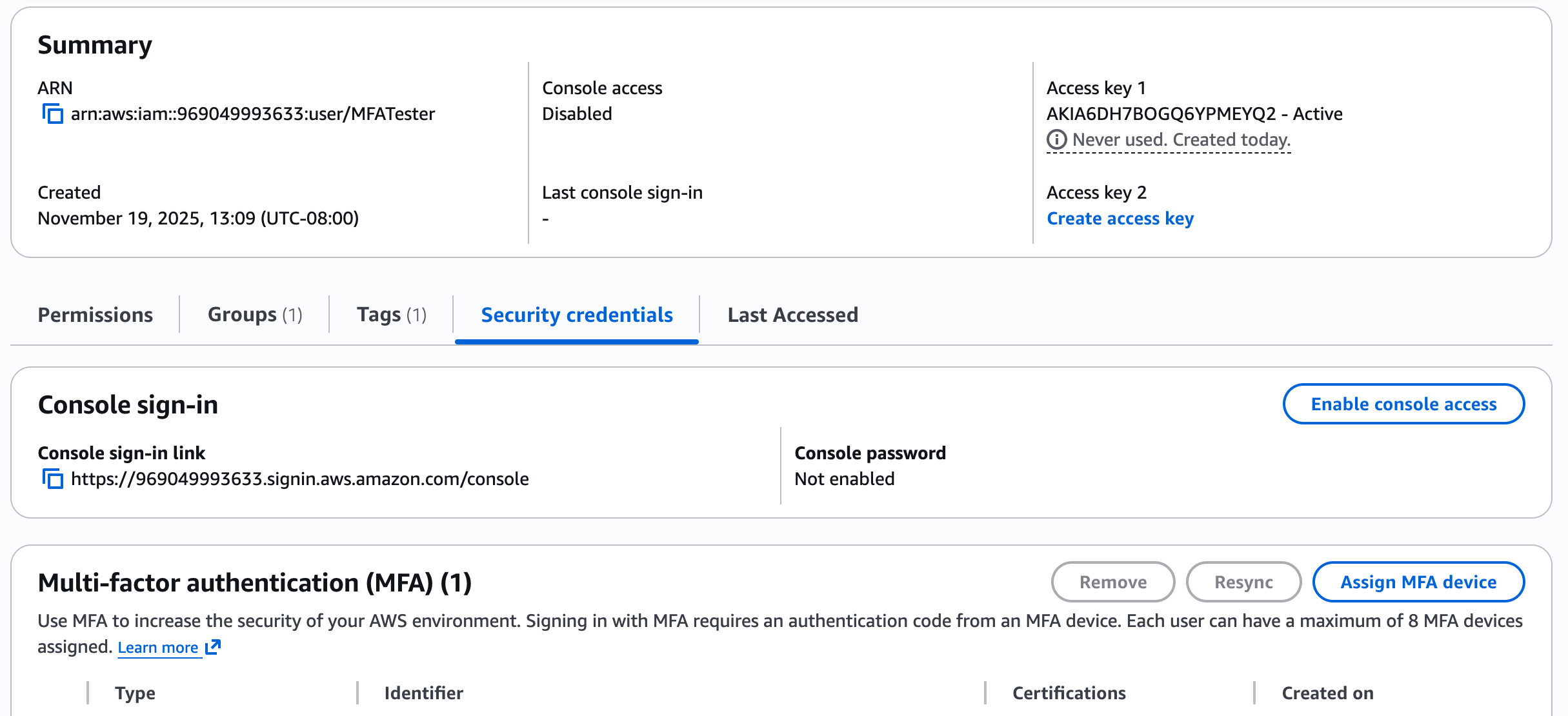
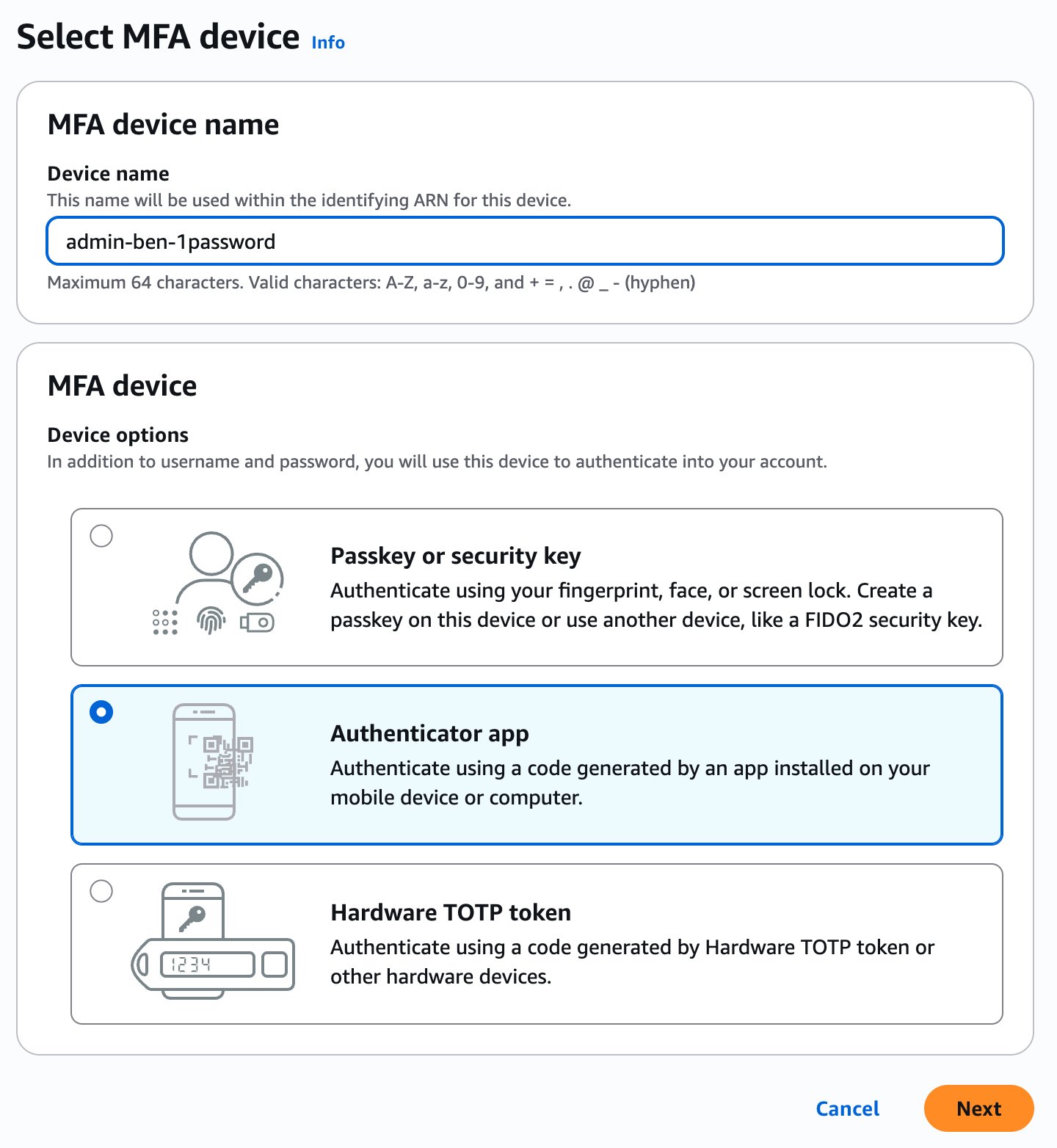
In the next screen, you can give your device a name and select what kind of MFA device it is. The names are global per client, so it must begin with your username. You can also create up to 8 devices, so it should also include an indication of which MFA device it is. In this example, I have chosen mfa-tester-1password, because mfa-tester is my IAM username, and I intend to use 1Password as this MFA device.
Choose Authenticator app as the type for your first MFA app. Later, I recommend creating a Passkey to use with your browser to make signing in to the web console easy and secure.
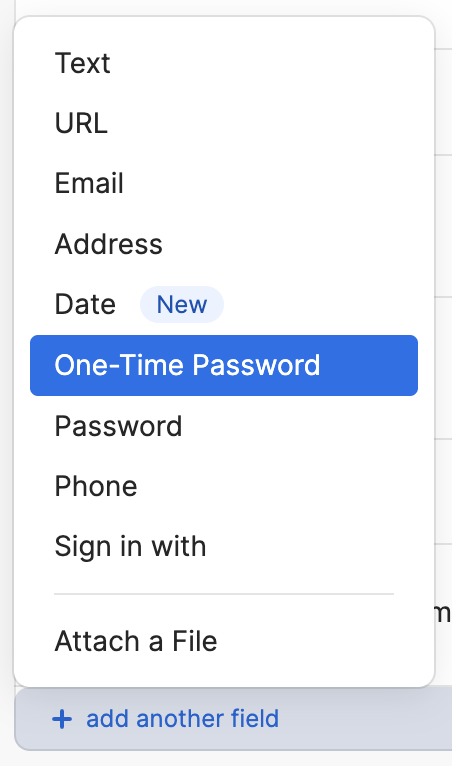
In 1Password, in the secret where you keep your AWS ACCESS KEY and AWS SECRET KEY, select Edit and choose + add another field. Choose the One-Time Password option.
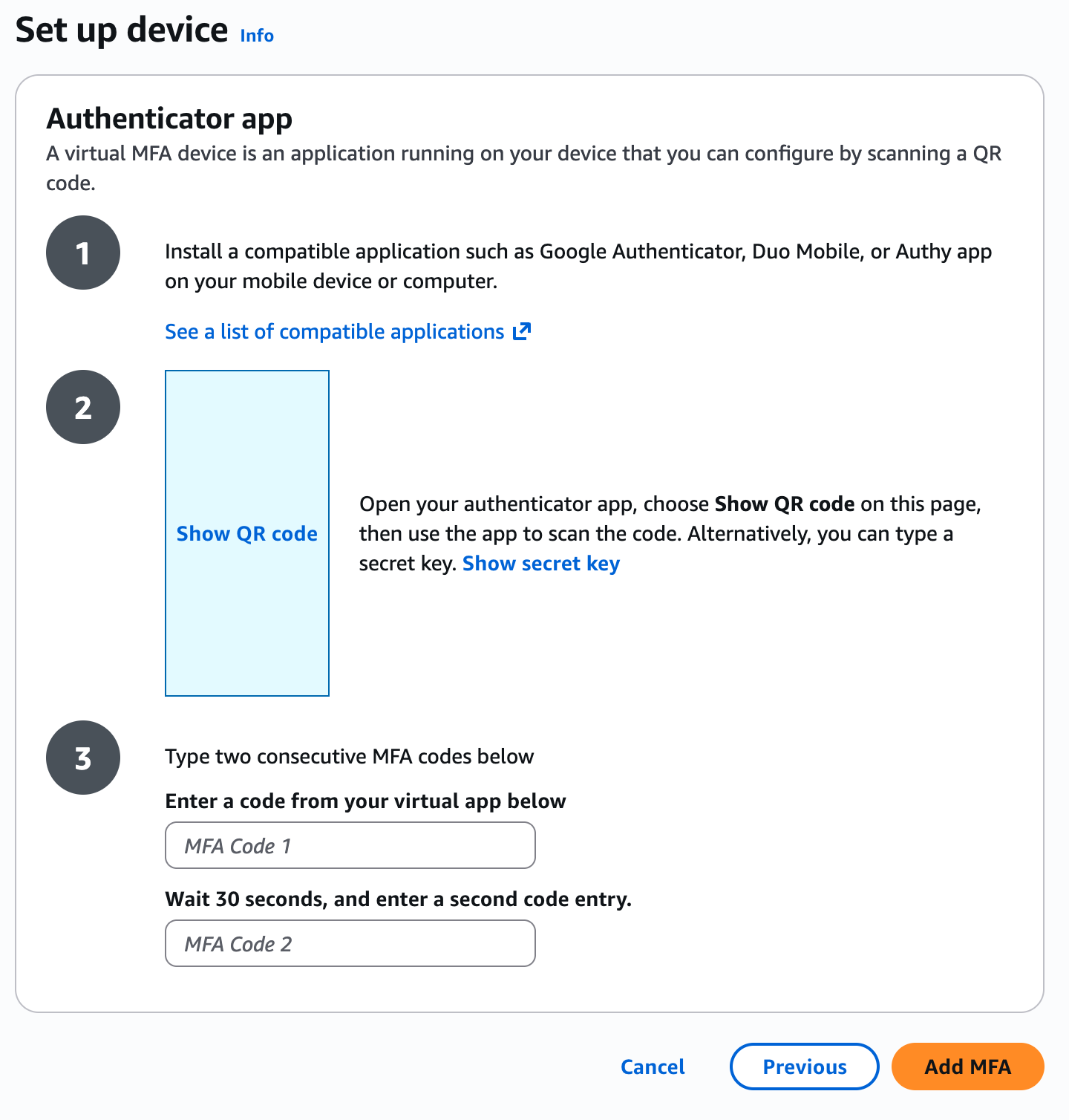
Back in the AWS Web Console, you’ll see the “Set up device” screen. Select show secret key and copy the value that appears in the pop-up.
Paste this value into the new one-time password field you created in 1Password, and Save the secret.
The one-time password password field should now show a six-digit code, like 781 • 619. This changes every thirty seconds. Copy this value into the text box labelled MFA Code 1. Wait for the number in 1Password to change, and paste the new value into MFA Code 2.
Press Add MFA.
Using the CLI
Do not follow these instructions if you are creating an MFA device with the AWS Web console.
These instructions require an Access Key ID/Secret Access Key pair. If you have only web console access, refer to the Web console instructions above.
TODO The op_credential_process tool should be able to handle this for you with all the correct options in the future.
Your IAM credentials should allow you the ability to create a Virtual MFA device on the command line.
aws --profile production \
    iam create-virtual-mfa-device \
    --virtual-mfa-device-name mfa-tester-1password \
    --outfile mfa-device-secret.txt \
    --bootstrap-method Base32StringSeed
If you use aws-vault to keep track of your security credentials, you will need to pass --no-session to any command that
uses the IAM service.
aws-vault exec production --no-session -- \
    aws iam create-virtual-mfa-device \
    --virtual-mfa-device-name mfa-tester-1password \
    --outfile mfa-device-secret.txt \
    --bootstrap-method Base32StringSeed
The names are global per client, so it should include your username. You can also create up to 8 devices, so it should also include an indication of which MFA device it is. In this example, I have chosen mfa-tester-1password, because mfa-tester is my IAM username, and I intend to use 1Password as this MFA device.
Copy the value written to the file mfa-device-secret.txt.
pbcopy < mfa-device-secret.txt
In 1Password, in the secret where you keep your AWS ACCESS KEY and AWS SECRET KEY, select Edit and choose + add another field. Choose the One-Time Password option.
Paste the value from mfa-device-secret.txt into this new field and save the secret.
The one-time password password field should now show a six-digit code, like 781 • 619. This changes every thirty seconds. Make a note of two consecutive codes, and then issue a command with this form:
# aws-vault exec production --no-session -- aws \
aws --profile production \
    iam enable-mfa-device \
    --user-name mfa-tester \
    --serial-number arn:aws:iam::AWS_ACCOUNT_ID:mfa/mfa-tester-1password \
    --authentication-code1 111111 \
    --authentication-code2 222222
Installing op, the 1Password CLI tool.
Both the op_credential_process and the third-party instructions rely on having op installed and configured. You can
install op using Homebrew:
brew install 1password-cli
You need to enable it in 1Password. Follow these instructions
Setting Up AWS CLI using op_credential_process
op_credential_process is a program written by Ben C. Forsberg to wrap op and exchange MFA codes for AWS session tokens.
It replaces aws-vault, if you’ve been using that.
Follow the instructions from the op_credential_process repo
to install the program on your computer.
tl;dr
if ! which rustup; then
    curl --proto '=https' --tlsv1.2 -sSf https://sh.rustup.rs | sh
    export PATH="$PATH:$HOME/.cargo/bin"
fi
rustup update
cargo install --config 'net.git-fetch-with-cli=true' --git ssh://git@github.com/ovationventures/op_credential_process
To configure ~/.aws/config, run op_credential_process setup {your profile name} where {your profile name} should be the name of the profile in the terraform-infrastructure/environments/{environment}/terraform.tf file. For example development-administrator for the development environment.
You may refer to these instructions for how to use this setup wizard.
When you are done, your ~/.aws/config, your profile should look something like this:
[profile mfatester]
region=us-west-2
credential_process=/Users/<your username>/.cargo/bin/op_credential_process --item "<NAME or UUID of 1Password secret>"
mfa_serial=arn:aws:iam::<AWS_ACCOUNT_ID>:mfa/<MFA DEVICE ID>
Remove any corresponding profile entry from your ~/.aws/credentials file.
Explanation and Manual Set-up.
The credential_process key tells the AWS CLI tool what program to run to get your credentials.
You can list the string name of your 1Password secret or it’s UUID.
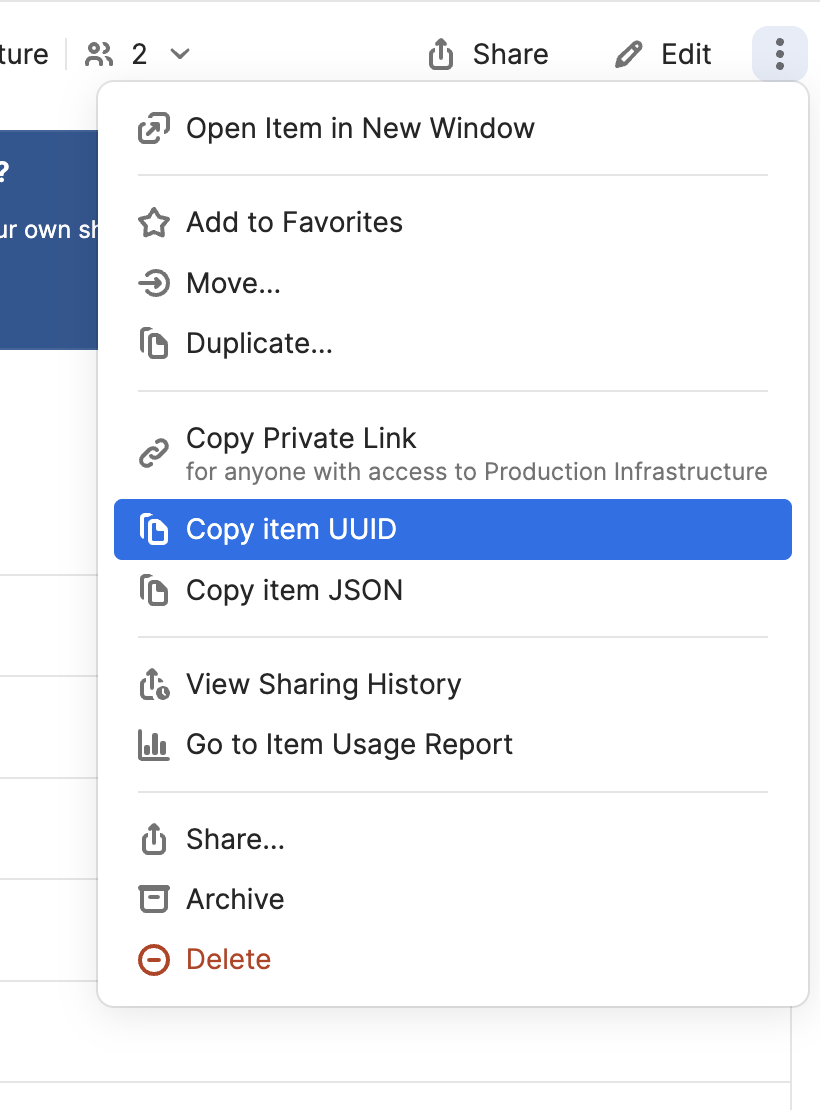
I recommend using the secret UUID instead. That way, you don’t need to worry about other people naming their secrets the same thing, and you can re-name your own secret later without breaking your configuration. Press the vertical ellipsis button in the upper-right and select Copy item UUID to get your item’s persistent code.
To enable UUIDs in the 1Password Interface, go to Settings
:arrow_right: Developer :arrow_right: Show 1Password Developer Experience.
Now, whenever you use the aws --profile mfatester command:
awswill runop_credentials_processto get your credentials (thecredential_processcommand);op_credentials_processwill cache these values in your OS keyring.
This means that you may be prompted for two passwords when you issue a new aws command: your login password, and your 1Password password. Since the session is cached, however, you can follow that up with additional aws commands without being prompted for your credentials again.
You can change how long op_credential_process caches your credentials by passing a number of seconds to the --duration option.
credential_process=/Users/<your username>/.cargo/bin/op_credential_process --item "<NAME or UUID of 1Password secret>" --duration 1500
The minimum duration is 900 seconds.
Setting Up AWS CLI using 3rd-Party Tools
If you can’t or don’t want to install Rust, or get ahold of a pre-built binary of op_credential_process for your machine,
you can use the 1Password CLI tool, op, and aws-vault instead.
In your ~/.aws/config, your profile should look something like this:
[profile mfatester]
region=us-west-2
credential_process=/opt/homebrew/bin/aws-vault export mfatester --format json
mfa_serial=arn:aws:iam::AWS_ACCOUNT_ID:mfa/mfa-tester-1password
mfa_process=/opt/homebrew/bin/op item get "My AWS Credentials" --otp
Remove the corresponding profile entry from your ~/.aws/credentials file, if you have one.
The credential_process key tells the AWS CLI tool what program to run to get your credentials. This can be any process that returns your credentials in this format:
{
  "Version": 1,
  "AccessKeyId": "an AWS access key",
  "SecretAccessKey": "your AWS secret access key",
  "SessionToken": "the AWS session token for temporary credentials",
  "Expiration": "ISO8601 timestamp when the credentials expire"
}
The mfa_process key is a special key that aws-vault uses: it’s not part of anything the AWS tool
uses. So you’ll have to use aws-vault in the value for credential_process, not 1Password.
On the other hand, 1Password will be able to generate those one-time codes for you.
In the mfa_process command, you can list the string name of your 1Password secret ("My AWS Credentials" in the example).
I recommend using the secret UUID instead. To enable UUIDs in the
1Password Interface, go to Settings :arrow_right: Developer
:arrow_right: Show 1Password Developer Experience. That way, you
don’t need to worry about other people naming their secrets the same
thing, and you can re-name your own secret later without breaking your
configuration. Press the vertical ellipsis button in the upper-right and
select Copy item UUID to get your item’s persistent code.
If you have multiple 1Password accounts, and need to restrict the search to one of them, the OP_ACCOUNT environment variable
can be used.
export OP_ACCOUNT=<ACCOUNT_ID> && op item get <ITEM_ID> --otp
You can use direnv to set this on a folder-by-folder basis if you wish.
Now, whenever you use the aws --profile mfatester command:
awswill runaws-vaultto get your credentials (thecredential_processcommand);aws-vaultwill runopto get your one-time code (themfa_processcommand);aws-vaultwill cache these values.
This means that you will be prompted for two passwords when you issue a new aws command: your aws-vault password, and your 1Password password. Since the session is cached, however, you can follow that up with additional aws commands without being prompted for your credentials again.